
by Ali Rind, Last updated: April 14, 2026
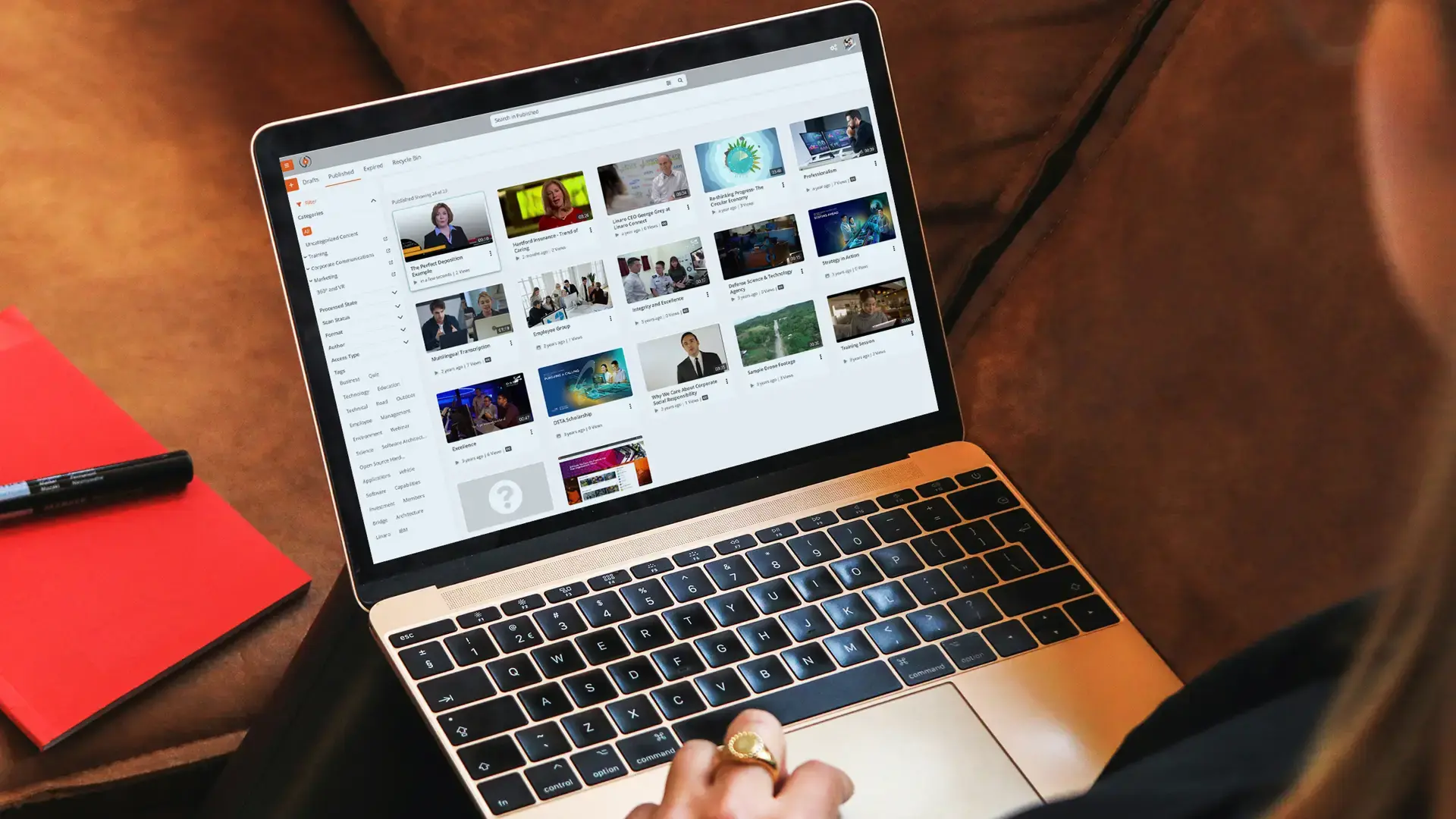
Your training video library didn't start out scattered. Someone recorded an onboarding walkthrough in Teams and left it in a channel. HR uploaded compliance videos to a SharePoint document library. The safety team saved inspection recordings on a network shared drive. A department head stored SOPs in their personal OneDrive folder.
Now your L&D program runs on content that lives in five or six different places, with no unified search, no engagement tracking, and no consistent access controls. This guide covers how to consolidate training videos into a single platform, step by step.
The Real Cost of Scattered Training Videos
When training content is spread across disconnected systems, the impact goes beyond inconvenience.
- Inconsistent versions. The compliance training video in SharePoint was updated last quarter. The version in the Teams channel is from two years ago. New hires are watching the wrong one, and nobody knows.
- Access confusion. A new employee asks where to find their department's training videos. The answer is "check the Teams channel, or maybe the SharePoint site, or ask your manager for the shared drive link." That is not a training program. That is a scavenger hunt.
- No engagement tracking. SharePoint can tell you a file was downloaded. It cannot tell you whether the employee watched 30 seconds or the entire 45-minute training module. Teams recordings have no analytics beyond a view count that includes accidental clicks. Video engagement analytics gives you watch time, drop-off points, and rewatch patterns that raw file storage never can.
- Compliance risk. For regulated training (OSHA, HIPAA, financial compliance), you need proof that employees completed the training. Scattered storage makes it nearly impossible to produce that proof during an audit.
- Wasted time. L&D teams spend hours searching for the right recording, re-uploading content to new locations, and answering questions about where things live instead of creating new training content.
Where Training Videos Typically End Up
Understanding where content currently lives is the first step toward consolidation. In most organizations, training videos accumulate in some combination of these locations:
- SharePoint document libraries. Often used as the "official" storage location, but SharePoint treats video as a file, not as streamable media. Large files hit upload limits, streaming quality depends on the viewer's connection, and there is no adaptive bitrate delivery.
- Teams channel recordings. Every meeting and training session recorded in Teams is saved to SharePoint or OneDrive automatically. These pile up in channel folders with auto-generated names that nobody renames.
- OneDrive personal folders. Trainers and department heads store recordings in their personal OneDrive. When that person leaves the organization, the content may become inaccessible.
- Network shared drives. Legacy storage that many organizations still use. No versioning, limited access controls, no streaming. Employees download the entire file to watch it.
- Individual laptops. Screen recordings, demo walkthroughs, and ad hoc training videos that never leave the trainer's local drive.
Each location has its own access model, search capability (or lack of it), and retention behavior. That fragmentation is the root problem.
Why SharePoint and Teams Are Not Video Management Platforms
SharePoint and Teams are excellent collaboration tools. They are not video management platforms. The distinction matters for training programs. For a detailed breakdown of where SharePoint falls short specifically, see SharePoint video hosting vs. a dedicated enterprise video platform.
- No video-level analytics. SharePoint tracks file views and downloads, not watch time, completion rates, or engagement by segment. Teams recordings show a basic view count.
- No transcription or search inside video. You cannot search for a specific topic discussed at the 12-minute mark of a 40-minute training recording. You can only search by file name and metadata fields.
- No adaptive bitrate streaming. SharePoint serves the original file. If a remote employee on a slow connection tries to watch a 4K recording, it buffers continuously instead of downscaling automatically.
- No role-based video access. SharePoint permissions apply at the site or library level, not the individual video level. You cannot easily grant HR Viewer access to compliance training while giving L&D Managers upload and edit access to the same library.
- No quizzes, assessments, or certification tracking. Training programs need in-video knowledge checks, completion certificates, and quiz score tracking. SharePoint has none of these.
- No content lifecycle management. Outdated training videos sit alongside current ones with no automatic archival, expiration, or version control that preserves URLs.
These are not shortcomings of SharePoint. They are simply outside its design purpose. A dedicated enterprise video content management platform fills these gaps.
Step 1: Inventory What You Have and Where
Create a simple audit of your current training video landscape.
For each source (SharePoint, Teams, OneDrive, shared drives, local storage), document:
- Number of videos and total storage size. This determines your migration timeline and storage needs.
- Content owners. Who uploaded or manages each collection? You will need their input on what to keep, archive, or delete.
- Formats. MP4 is standard, but you will likely find WMV, MOV, AVI, and other formats from screen recorders, phone cameras, and legacy tools.
- Last modified or accessed date. Content that has not been accessed in two or more years is a candidate for archival or deletion.
- Sensitivity level. Does the content include proprietary processes, personal health information, or other regulated material?
A shared spreadsheet with columns for each of these fields works well. Assign each department head or content owner to fill in their section.
Step 2: Decide What to Keep, Archive, or Retire
Not everything deserves to be migrated.
- Keep (migrate). Current, actively used training content. Compliance videos that are within their validity period. Frequently referenced SOPs and process walkthroughs.
- Archive. Historical recordings that are no longer actively used but may have retention requirements. Previous versions of training that could be needed for audit purposes.
- Retire (delete). Duplicate copies. Outdated content that has been replaced. Test recordings. One-off meetings that were never meant to be training content.
Culling before migration reduces the volume you need to move, lowers storage costs, and ensures the new platform starts clean.
Step 3: Define Your Category and Access Structure
On the new platform, training content needs a logical organization that employees can navigate without help.
Build your structure around how employees think about training:
- By department. HR Training, Sales Enablement, Engineering Onboarding, Safety and Compliance.
- By content type. Courses (multi-video series), standalone modules, SOPs, recorded webinars, meeting replays.
- By audience. New hires, all employees, managers only, specific roles or locations.
- By compliance requirement. Mandatory annual training, optional professional development, certification-track content.
Define access permissions at each level. Determine which groups need Viewer access, Contributor access (upload and edit), and Manager access (analytics and administration). Map these to your existing Active Directory or identity provider groups so provisioning is automatic.
Step 4: Ingest Content
With your taxonomy defined and permissions mapped, begin migration.
- Auto-ingest from Teams and Zoom. Configure connectors that automatically pull meeting and training recordings from Teams, Zoom, and Webex into the new platform. This handles both the existing backlog and all future recordings.
- Bulk upload from drives. For content on shared drives, network storage, and local machines, use bulk upload tools. Desktop applications with watch folder monitoring can automate ongoing ingestion from specific directories.
- SharePoint connector. Pull video content from SharePoint document libraries, preserving folder structure and existing metadata where applicable.
- Metadata import. If you maintained a spreadsheet during the audit phase with titles, descriptions, and categories, import that metadata alongside the video files to pre-populate the library structure.
Migrate in phases by department or content priority. Do not try to move everything at once. Start with the most actively used training content, validate the process, then expand. For a broader look at how video sprawl happens and how centralization solves it, the enterprise video content management guide covers the full picture.
Step 5: Add AI Metadata Post-Migration
Once content is in the centralized platform, enhance it with AI processing.
- Automatic transcription. Generate searchable transcripts for every video. Employees can search inside videos by spoken word, not just by file name.
- Automatic tagging. AI analyzes video content and applies relevant tags, improving discoverability without manual effort.
- Chaptering. Long training recordings are automatically broken into navigable segments, so employees can jump to the section they need.
- Summarization. AI-generated summaries give employees a quick overview before they commit to watching a full recording.
- Multilingual captions. For global organizations, AI translation generates captions in multiple languages from a single source video.
These enhancements transform a static video library into a searchable, navigable training resource.
Step 6: Redirect Users and Retire Old Sources
The final step is making sure employees use the new platform and stop using the old locations.
- Update all internal links. LMS modules, SharePoint pages, email templates, and internal wikis that link to old video locations need to be updated.
- Communicate the change. Send a clear announcement covering where training videos now live, how to access them, and when old sources will be retired.
- Set a retirement date. After a transition period (two to four weeks is typical), disable access to old sources or delete migrated content from them.
- Monitor adoption. Use platform analytics to confirm employees are watching content on the new platform. If a department shows low usage, follow up with their content owner.
What Changes After Consolidation
When training videos live in one platform, the day-to-day experience shifts for everyone involved in learning and development.
- Single search. Employees search once and find every training video in the organization, by title, tag, or spoken content.
- Engagement data. L&D sees who watched what, how far they got, which segments they rewatched, and whether they passed the quiz.
- Consistent access control. Permissions are managed centrally, synced with Active Directory, and enforced at the video level.
- Multilingual captions. A single training video can serve employees in dozens of languages through AI-generated translated captions.
- Compliance tracking. Automated completion tracking and certificate generation provide audit-ready proof of training.
How EnterpriseTube Handles Ingestion from the Microsoft Stack
EnterpriseTube is designed for organizations running on Microsoft infrastructure that need a purpose-built video training platform.
- Teams and Zoom auto-ingest. Recordings from Teams meetings, Zoom calls, and Webex sessions are automatically ingested, organized, and made searchable.
- 255+ format support. Video, audio, images, and documents are ingested without manual conversion.
- AI transcription in 82 languages. Every ingested video gets a searchable transcript. Employees can search inside video by spoken word.
- In-video quizzes and assessments. Embed knowledge checks directly in training videos. Track scores and completion rates per user.
- SCORM 1.2/2004 and LTI 1.3 integration. Connect with existing LMS platforms (Canvas, Moodle, Blackboard, D2L Brightspace) for grade passback and learner tracking. For teams that want to keep their current LMS in place, see how enhancing video-based learning without replacing your LMS works in practice.
- Automated certification. Issue completion certificates automatically when employees finish training courses.
- Adaptive bitrate streaming. Content streams in the best quality the viewer's connection supports, up to 4K, without buffering.
- RBAC with SSO and SCIM. Integrate with Azure AD, Okta, or any SAML/OAuth provider for automated provisioning and group-based access control.
Ready to bring your training videos together? Start your free EnterpriseTube trial and see how auto-ingest from Teams, Zoom, and SharePoint works.

About the Author

Jump to
.webp)
Why Enterprises Are Moving Away from SharePoint for Video Hosting

Alternatives to MS Stream & SharePoint for Enterprise Video Streaming

No Comments Yet
Let us know what you think